---
title: Sharing Media Content via Access Links
description: "Teachers, librarians, and students can share video content from Explore Media in two ways: using a standard sharing link for unrestricted videos, or an access link for videos that fall outside your school's classification settings."
---
[Skip to content](https://support.informit.org/knowledge-base/sharing-media-content-via-access-links#main-content)
English
Show submenu for translations
[Contact us for more support?](https://support.informit.org/knowledge-base/kb-tickets/new?hsLang=en)
[](https://support.informit.org/migration/knowledge-base?hsLang=en)
- [Go to search.informit.org](https://search.informit.org/)
Open main navigation
Close main navigation
- [Go to search.informit.org](https://search.informit.org/)
- English
Show submenu for translations
- [Contact us for more support?](https://support.informit.org/knowledge-base/kb-tickets/new)
- [Go to search.informit.org](https://search.informit.org/)
[Go to search.informit.org](https://search.informit.org/)
How can we help you today?
- There are no suggestions because the search field is empty.
1. [Informit Knowledge Base](https://support.informit.org/knowledge-base?hsLang=en)
2. [Informit Explore](https://support.informit.org/knowledge-base/informit-explore?hsLang=en)
3. [Explore Search and Navigation](https://support.informit.org/knowledge-base/informit-explore?hsLang=en#explore-search-and-navigation)
April 21, 2026
# Sharing Media Content via Access Links
## Teachers, librarians, and students can share video content from Explore Media in two ways: using a standard sharing link for unrestricted videos, or an access link for videos that fall outside your school's classification settings.
**Sharing Links**
A standard sharing link provides direct access to a video's URL on Explore Media. Any teacher, librarian, or student can create a sharing link for videos included within your school's classification settings.
**How to create a sharing link**
1. Navigate to the video page for the content you want to share.
2. Select the **Share** button, then choose **Copy Link**.
3. Paste the link into an email, document, learning task, or discussion board.
4. The link takes students and teachers directly to the video on Explore Media.
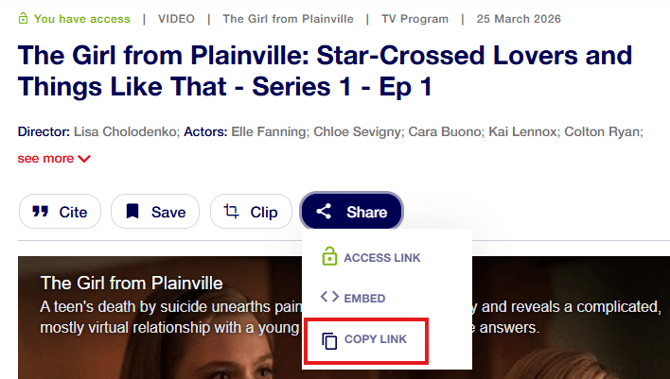
**Please note:** Standard links will not work for restricted videos. To share a restricted video, use an Access Link (see below).
**Access Links**
Access links allow teaching staff to share videos that would normally be restricted under your school's classification settings, in a deliberate, controlled, and classroom-focused way.
**Key things to know**
- **A staff (individual) account is required:** Access links can only be created by staff with an administrator or teacher account who are individually logged into Explore.
- **Controlled access:** Access links enable staff to use age-restricted or sensitive content without changing the default access rules for the rest of the platform or for any other students.
- **Student use:** Students may only view the restricted video using the specific access link provided to them by teaching staff.
- **Expiration and limits:** Access links have both an expiration date and an activation limit, meaning they can only be accessed for a set period of time and by a set number of users.
**How to create an access link**
1. Log into Explore using your individual account and navigate to the video you want to share.
2. Open the **Share** menu for the restricted video and select **Access Link**.
3. Give the link a name, set the number of times it can be accessed, and choose how long it will remain active.
4. Copy the link and share it with your students. The link will now provide direct access to the program for the duration and usage limit you have set.
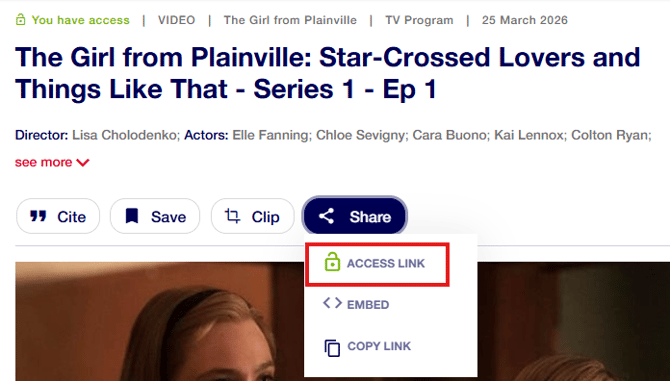
**Tip:** Give each access link a clear, descriptive name so you can easily identify and manage your links from My Account.
Still need help? Reach out to [support.informit@rmit.edu.au](mailto:support.informit@rmit.edu.au)
- [Informit](https://support.informit.org/knowledge-base/informit?hsLang=en#main-content)
- [Authentication](https://support.informit.org/knowledge-base/informit?hsLang=en#authentication)
- [Content Updates and Announcements](https://support.informit.org/knowledge-base/informit?hsLang=en#content-updates-and-announcements)
- [Platform Search Strategies](https://support.informit.org/knowledge-base/informit?hsLang=en#platform-search-strategies)
- [Core Training and Education resources](https://support.informit.org/knowledge-base/informit?hsLang=en#core-training-and-education-resources)
- [Core Administrator tools](https://support.informit.org/knowledge-base/informit?hsLang=en#core-administrator-tools)
- [Informit Explore](https://support.informit.org/knowledge-base/informit-explore?hsLang=en#main-content)
- [Explore Authentication](https://support.informit.org/knowledge-base/informit-explore?hsLang=en#explore-authentication)
- [Explore Content Updates and Announcements](https://support.informit.org/knowledge-base/informit-explore?hsLang=en#explore-content-updates-and-announcements)
- [Explore Search and Navigation](https://support.informit.org/knowledge-base/informit-explore?hsLang=en#explore-search-and-navigation)
- [Explore Training and Education resources](https://support.informit.org/knowledge-base/informit-explore?hsLang=en#explore-training-and-education-resources)
- [Explore Administrator tools](https://support.informit.org/knowledge-base/informit-explore?hsLang=en#explore-administrator-tools)
- [Publishing & Partners](https://support.informit.org/knowledge-base/publishing-partners?hsLang=en#main-content)
- [Partner Dashboard](https://support.informit.org/knowledge-base/publishing-partners?hsLang=en#partner-dashboard)
- [Publisher Resources](https://support.informit.org/knowledge-base/publishing-partners?hsLang=en#publisher-resources)
[](https://search.informit.org/)
[Start your search with Informit.org](https://search.informit.org/)
[About Informit](https://about.informit.org/)
Copyright © 2025, Informit
Melbourne, Australia
```json
{
"@context" : "https://schema.org",
"@type" : "VideoObject",
"caption" : {
"@type" : "MediaObject",
"contentUrl" : "https://support.informit.org/media-transcripts/211420267841/en.vtt",
"inLanguage" : "en",
"name" : "en Captions"
},
"contentUrl" : "https://5849608.fs1.hubspotusercontent-na1.net/hubfs/5849608/video_assets/211420267841/inherited/web_optimized.mp4",
"dateModified" : "2026-04-21T00:58:36.592Z",
"duration" : "PT2M43S",
"height" : 1080,
"name" : "Sharing links and creating access links",
"thumbnailUrl" : "https://5849608.fs1.hubspotusercontent-na1.net/hubfs/5849608/Explore/Sharing%20links%20and%20creating%20access%20links.mp4/medium.jpg",
"uploadDate" : "2026-04-21T00:58:21.297Z",
"width" : 1920
}
```