---
title: Navigating and Searching Explore Media
description: Explore Media is a new video-streaming add-on that supplements your existing Explore subscription by providing access to videos and screen education resources that can be used in the classroom. Films and television programs on a wide range of subjects and across all genres are available to Explore Media subscribers, along with news and current affairs segments from national and international broadcasters.
---
[Skip to content](https://support.informit.org/knowledge-base/navigating-and-searching-explore-media#main-content)
English
Show submenu for translations
[Contact us for more support?](https://support.informit.org/knowledge-base/kb-tickets/new?hsLang=en)
[](https://support.informit.org/migration/knowledge-base?hsLang=en)
- [Go to search.informit.org](https://search.informit.org/)
Open main navigation
Close main navigation
- [Go to search.informit.org](https://search.informit.org/)
- English
Show submenu for translations
- [Contact us for more support?](https://support.informit.org/knowledge-base/kb-tickets/new)
- [Go to search.informit.org](https://search.informit.org/)
[Go to search.informit.org](https://search.informit.org/)
How can we help you today?
- There are no suggestions because the search field is empty.
1. [Informit Knowledge Base](https://support.informit.org/knowledge-base?hsLang=en)
2. [Informit Explore](https://support.informit.org/knowledge-base/informit-explore?hsLang=en)
3. [Explore Search and Navigation](https://support.informit.org/knowledge-base/informit-explore?hsLang=en#explore-search-and-navigation)
April 21, 2026
# Navigating and Searching Explore Media
## Explore Media supplements your existing Explore subscription by providing access to videos and screen education resources that can be used in the classroom.
#### **Navigating to Explore Media** – Use the Media tab on your Explore dashboard to move between Explore and Explore Media.
Click the Explore logo or the Home button to return to the main Explore page at any time.
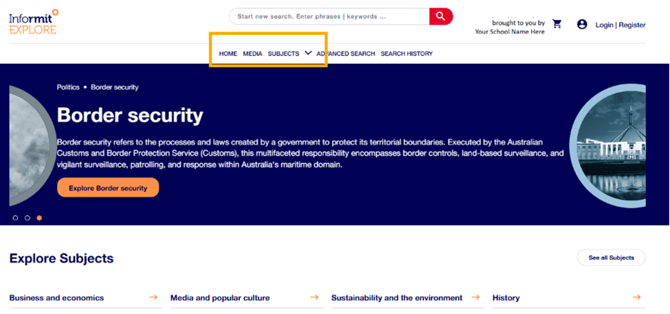
**Browsing the Explore Media Hub:** We encourage you and your students to scroll down the main page to browse popular videos, classroom favourites, news and current affairs shows, screen guides and much more. The Media Hub’s offerings are always changing.
**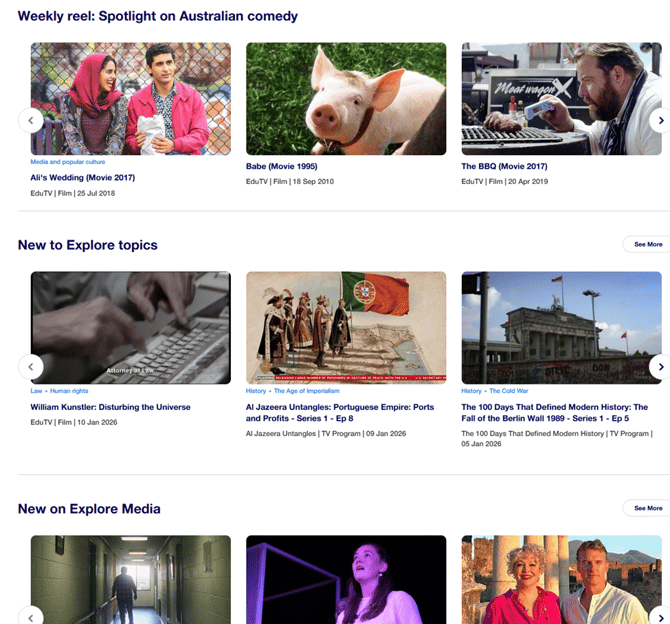**
Click any thumbnail on the Media Hub to go right to the Video Page for that resource.
**Viewing a video page:** Watch the whole video and view details such as duration, genre, language, and classification.

**Searching Explore Media**
**Basic searching:** Use the search bar immediately under the Explore Media banner to search only video resources. Search for a topic, an actor’s name, or movie title.
Place phrases, such as an actor’s name, within speech marks, to ensure you only find relevant results. For example: searches for “climate change” or “deep time” as phrases will give you better results.
**Start a new search:** Clicking back into the search window starts a new search.

**Media Type:** Select a media type to only retrieve certain types of video.
**All Videos** – Default search for all media types
**Films** – Feature-length and short films
**News stories** – Reports from news and current affairs programs
**Documentaries** – Documentary films and television episodes
**TV programs** – Full television episodes
**View your search results:** Your search terms are highlighted in the results list.
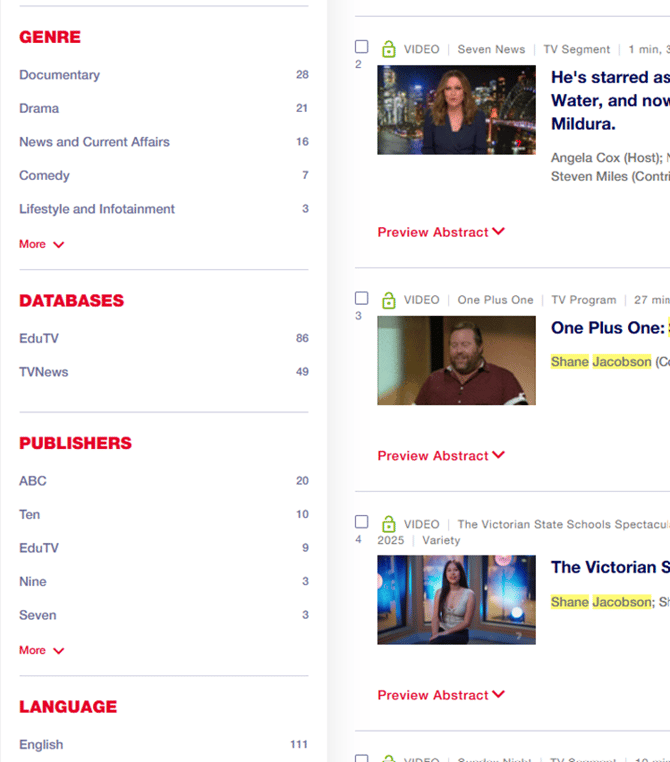
**Use Filters to refine your search results:** A variety of filters can be found in the left-hand panel on the search results screen.
- **Genre** - Click on a genre to see only comedy, only drama etc
- **Language**
- **Source** (eg: Behind the News)
- **Subject**
- **Publication Date (broadcast date)** – use this filter to find News and Current affairs programs, not for films and television programs. Films and television programs may be broadcast years after their production date
**Advanced Search** is recommended for complex searches and can be found at the top of any Explore or Explore Media page. Moving directly to Advanced Search or clicking into any of the search windows will wipe out your current search and start a new search, so use **Edit Search** instead if you wish to preserve your original search.
**Edit search** preserves your original simple or advanced search plus your filters. Edit Search opens the Advanced Search screen where you can build onto your original search by applying more search terms or filters. You may edit a search several times over.
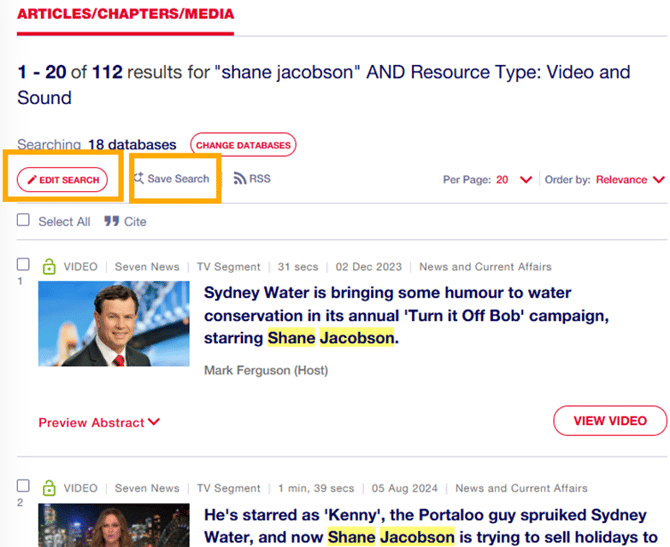
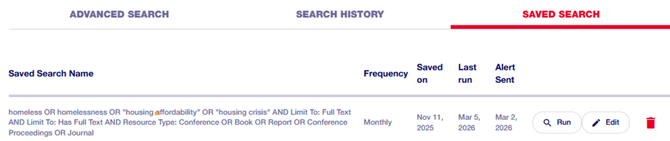
**Save Search** is a feature for staff with individual accounts. Save complex searches to re-run or edit later or to set up alerts for new material.
**Return to the Explore main page** at any time by clicking the Home button or the Informit or Explore logo at the top of your screen.
**More searching help**: [Searching on Explore,](https://support.informit.org/knowledge-base/informit-explore-search-strategies-on-explore?hsLang=en) [Search Strategies](https://support.informit.org/knowledge-base/a-deep-dive-into-search-strategies?hsLang=en) and [Advanced Search](https://support.informit.org/knowledge-base/advanced-search-capabilities?hsLang=en)
**Still need help? Please reach out to [support.informit@rmit.edu.au](mailto:support.informit@rmit.edu.au)**
- [Informit](https://support.informit.org/knowledge-base/informit?hsLang=en#main-content)
- [Authentication](https://support.informit.org/knowledge-base/informit?hsLang=en#authentication)
- [Content Updates and Announcements](https://support.informit.org/knowledge-base/informit?hsLang=en#content-updates-and-announcements)
- [Platform Search Strategies](https://support.informit.org/knowledge-base/informit?hsLang=en#platform-search-strategies)
- [Core Training and Education resources](https://support.informit.org/knowledge-base/informit?hsLang=en#core-training-and-education-resources)
- [Core Administrator tools](https://support.informit.org/knowledge-base/informit?hsLang=en#core-administrator-tools)
- [Informit Explore](https://support.informit.org/knowledge-base/informit-explore?hsLang=en#main-content)
- [Explore Authentication](https://support.informit.org/knowledge-base/informit-explore?hsLang=en#explore-authentication)
- [Explore Content Updates and Announcements](https://support.informit.org/knowledge-base/informit-explore?hsLang=en#explore-content-updates-and-announcements)
- [Explore Search and Navigation](https://support.informit.org/knowledge-base/informit-explore?hsLang=en#explore-search-and-navigation)
- [Explore Training and Education resources](https://support.informit.org/knowledge-base/informit-explore?hsLang=en#explore-training-and-education-resources)
- [Explore Administrator tools](https://support.informit.org/knowledge-base/informit-explore?hsLang=en#explore-administrator-tools)
- [Publishing & Partners](https://support.informit.org/knowledge-base/publishing-partners?hsLang=en#main-content)
- [Partner Dashboard](https://support.informit.org/knowledge-base/publishing-partners?hsLang=en#partner-dashboard)
- [Publisher Resources](https://support.informit.org/knowledge-base/publishing-partners?hsLang=en#publisher-resources)
[](https://search.informit.org/)
[Start your search with Informit.org](https://search.informit.org/)
[About Informit](https://about.informit.org/)
Copyright © 2025, Informit
Melbourne, Australia
```json
{
"@context" : "https://schema.org",
"@type" : "VideoObject",
"caption" : {
"@type" : "MediaObject",
"contentUrl" : "https://support.informit.org/media-transcripts/211415173216/en.vtt",
"inLanguage" : "en",
"name" : "en Captions"
},
"contentUrl" : "https://5849608.fs1.hubspotusercontent-na1.net/hubfs/5849608/video_assets/211415173216/inherited/web_optimized.mp4",
"dateModified" : "2026-04-21T03:51:18.744Z",
"duration" : "PT4M15S",
"height" : 668,
"name" : "Explore Media_Navigating and Searching",
"thumbnailUrl" : "https://5849608.fs1.hubspotusercontent-na1.net/hubfs/5849608/Explore/Explore%20Media_Navigating%20and%20Searching.mp4/medium.jpg",
"uploadDate" : "2026-04-21T03:50:56.142Z",
"width" : 1080
}
```