
Embedding is ideal for flipped classrooms, blended learning, and self-paced activities. It helps integrate media naturally into lesson sequences alongside questions, readings, and other activities.
How it works
- White-listing during onboarding. When your school sets up its Explore Media subscription, your LMS URL will be white-listed by Informit. This means your LMS is pre-approved as a safe, reliable platform, and embedded content will not be blocked by security systems.
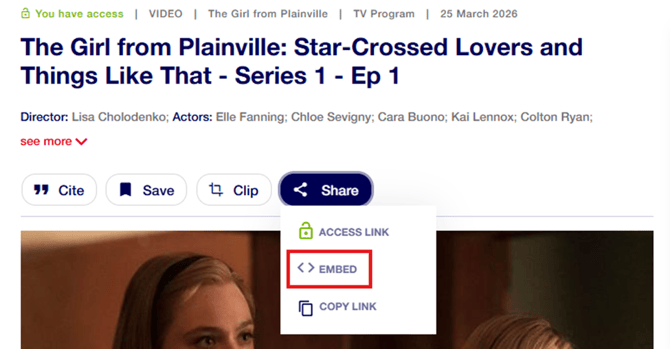
- Embed your video. Select Embed from the Share menu on any video page, then copy the embed link into your LMS.
- All video content is available. Once your LMS is white-listed, you can embed all video content, including restricted videos, without needing additional permissions.
- No separate login required. Teachers and students can view embedded videos directly within your LMS without needing to log into Explore Media separately.
Important: You will need to provide both your Library Management System and Learning Management System URLs during onboarding. Both systems must be white-listed separately.
About white-listing
White-listing is the process by which Informit pre-approves your school's LMS as a trusted platform. During onboarding, Informit will ask for your school's LMS URL and register it as a safe environment for content sharing. Once white-listed, you can freely embed Explore Media content into your LMS without requiring additional permissions each time.
If your LMS has not been white-listed
If your LMS was not white-listed during your initial onboarding, or if your school has changed or added a new LMS platform, you'll need to contact Informit to complete the process.
- Reach out to the Informit Customer Success team as soon as possible at support.informit@rmit.edu.au
- Provide your LMS platform details, for example, Canvas, Moodle, or Google Classroom, and any relevant technical contacts at your school.
- The Customer Success team will guide you through the white-listing process so that teachers and students can access embedded content seamlessly.
Tip: If you are unsure whether your LMS has been white-listed, try embedding a video into your LMS. If the video does not play, your LMS may not yet be approved. Contact Customer Success to resolve this.
 Still need help? Reach out to support.informit@rmit.edu.au