
Explore Media is designed for both teachers and students, but some content may not be suitable for younger grades. During the onboarding process, your school establishes a baseline classification restriction for students, and this restriction applies to everyone who is logged in using your institutional school account.
To access content outside of this classification, authenticated staff members must login with their individual teacher or administrator account using their school email, so that Informit can correctly identify you as a teacher and provision content access accordingly.
For example, you may choose your baseline classification to be set as PG. This means staff members will need to be logged in as an individual to access M-rated and MA-rated content.
Sharing content outside of your baseline classification is done via access links or embedding on your LMS.
See this guide to set up administrator access:
- Select your name in the top right hand corner of screen
- Select My Account
- From here, you can access classification settings and managing teacher access
Classification Settings
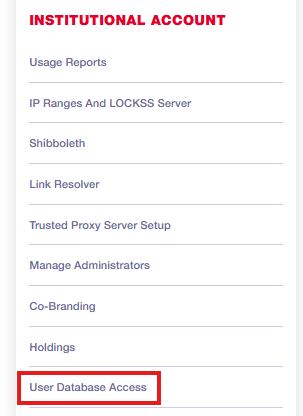
From the left hand panel, under Institutional Account, select User Database Access:
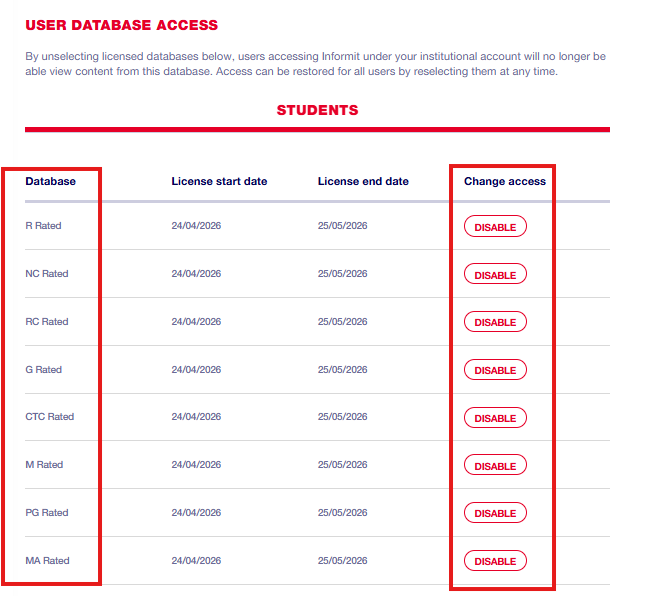
Classifications (referred to as Database) appear in the left column under the Students section.
By unselecting or disabling classifications, all users accessing via your school's account will no longer be able view content from that database. This establishes your school's baseline classification rating.
To change access, select Disable in the right column:
You will see this database, or classification rating, drop to Disabled Databases at the bottom of the screen:
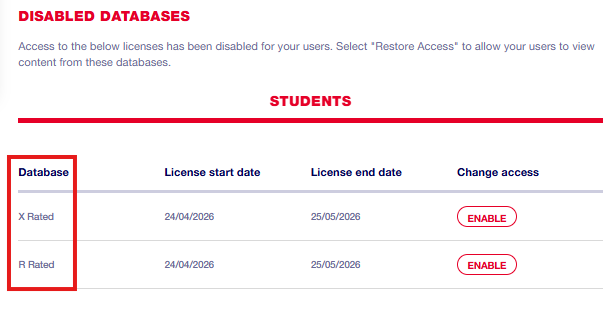
Access can be restored for all users by selecting Enable at any time.
Manage Teacher Access
Teachers can access content outside of the school's baseline classification. Authenticated staff members must login with their individual teacher or administrator account using their school email, so that Informit can correctly identify you as a teacher and provision content access accordingly.
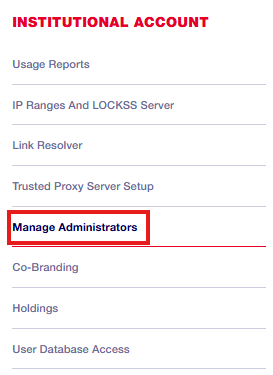
To add a teacher, select Manage Administrators from the left hand panel:
Adding a Teacher
To enter an individual teacher, enter the teacher's email address and click Add teacher. To add multiple teachers at once, hit the 'enter' key on your keyboard to create a new row and enter one email address per new row:
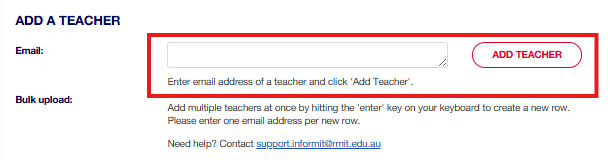
The teacher will then receive an email to activate their access.
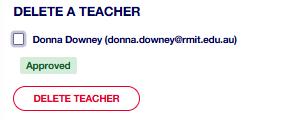
Deleting a Teacher
 Still need help? Reach out to support.informit@rmit.edu.au